
 BibleLook Docs
Start here
People and phones
Who is in your church on BibleLook, what each of them can do, and how a guest speaker presents.
Everyone in your church signs in with their own email. What they can do is their role, which you choose when you invite them on the account’s People page.
| Role | Can |
|---|---|
| Owner | Everything, and the only one who handles billing and the church’s name. There is exactly one. |
| Admin | Invite and remove people, and connect and remove computers. |
| Team | Keep the songs, services and slides in the library, and run a service from their phone once the person at the computer allows it. |
| Helper | Follow the running order on their phone and suggest announcements. No library. |
The owner can hand the church to someone else in Church settings, under Owner. They stay on as an admin.
Adding someone
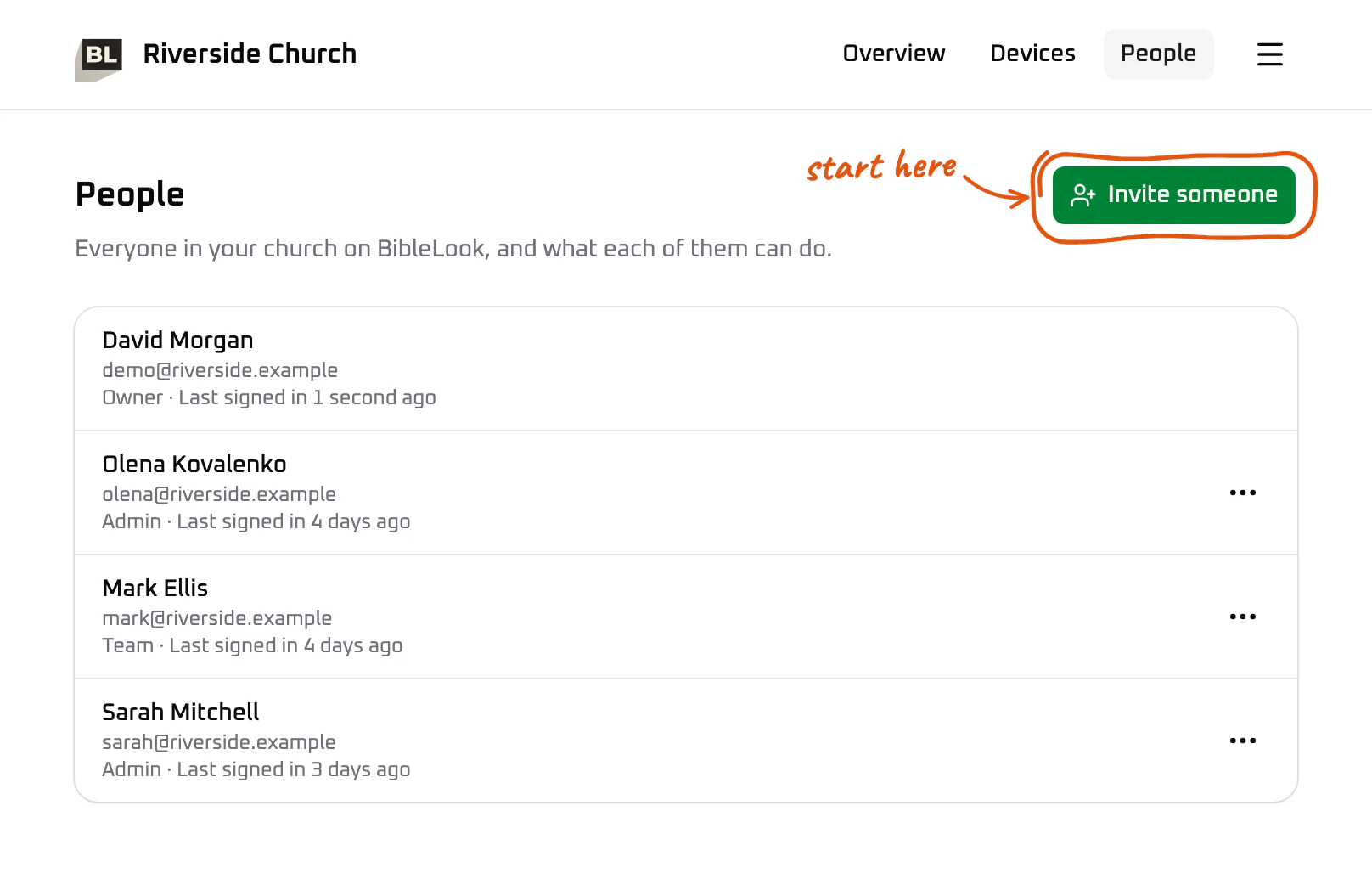
You invite people from the People page of your church’s account,
account.biblelook.com. Only the owner and admins can.
-
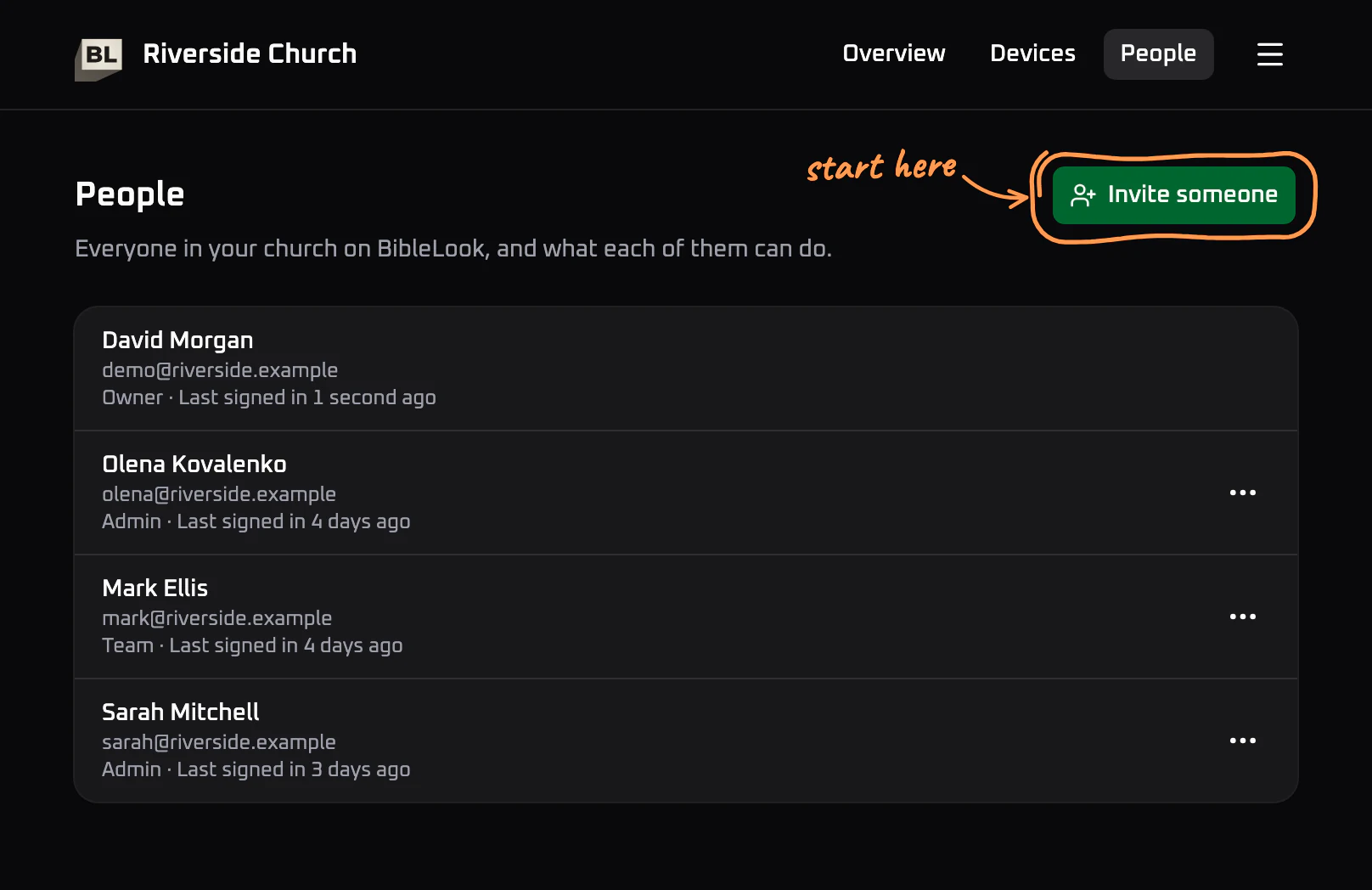
Choose Invite someone.
-
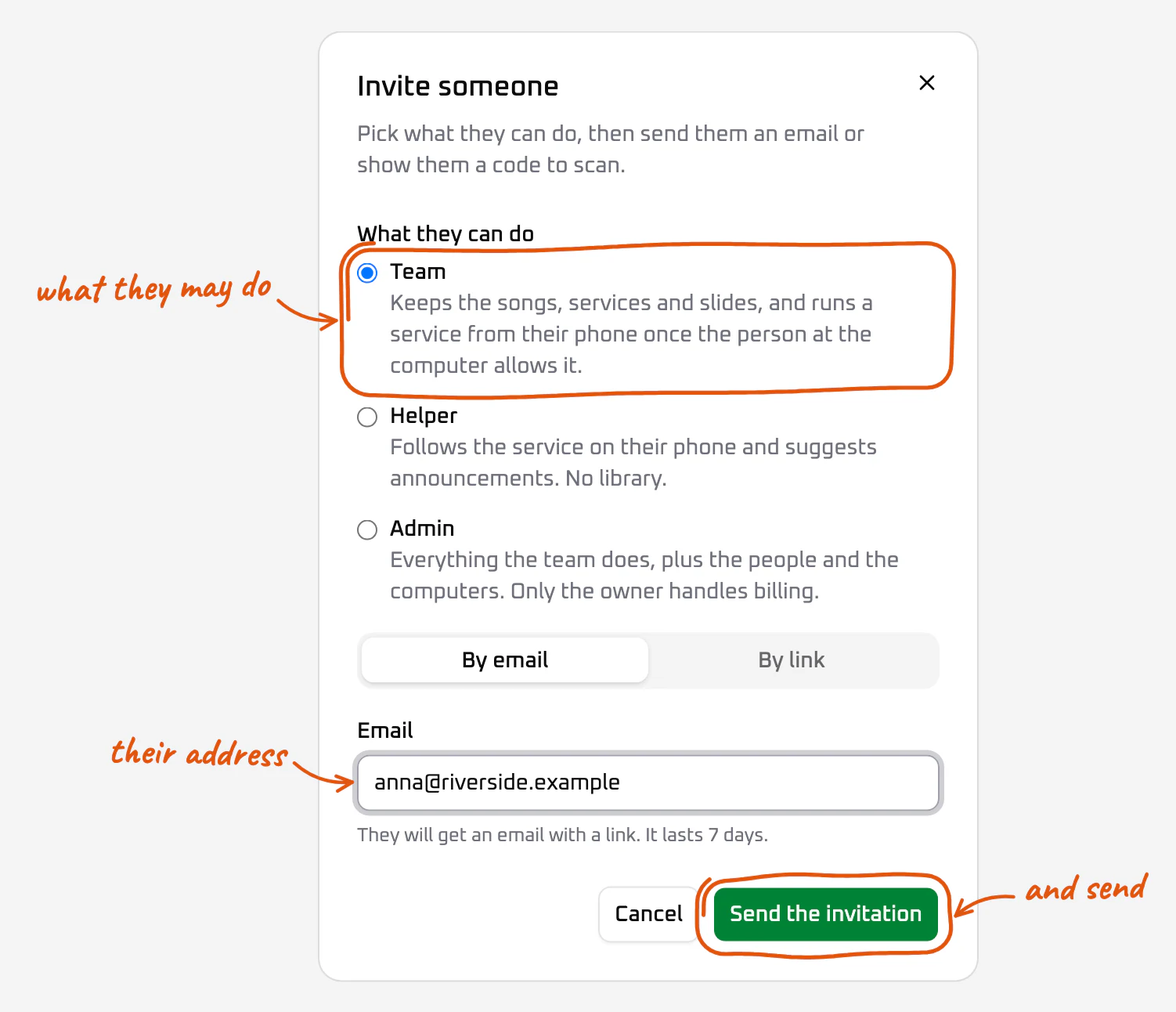
Under What they can do, choose their role. You can change it later from ⋯ on their row.
-
Choose how to reach them: By email or By link.
By email
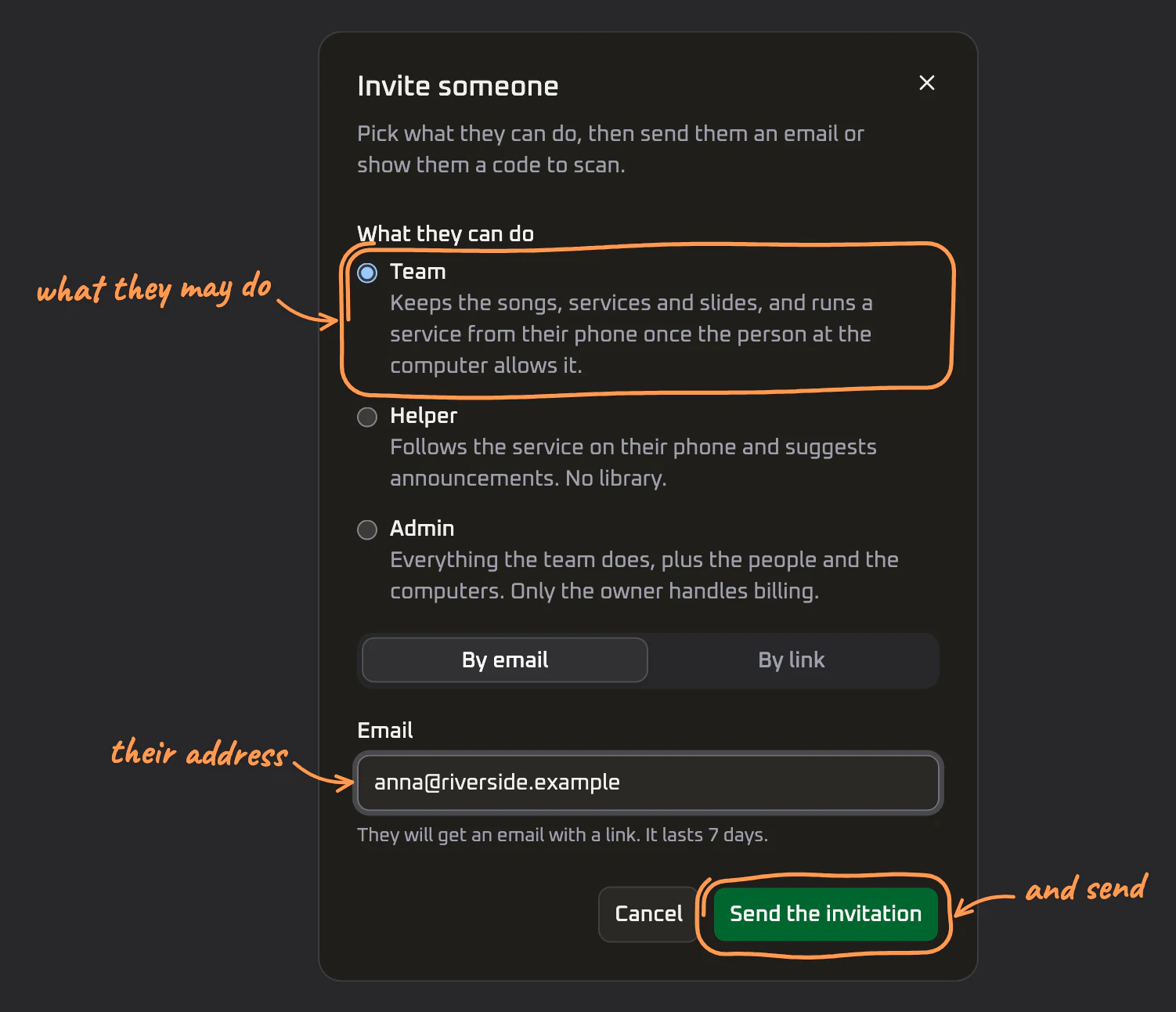
Type their address and choose Send the invitation. They get a link that works for seven days.
By link
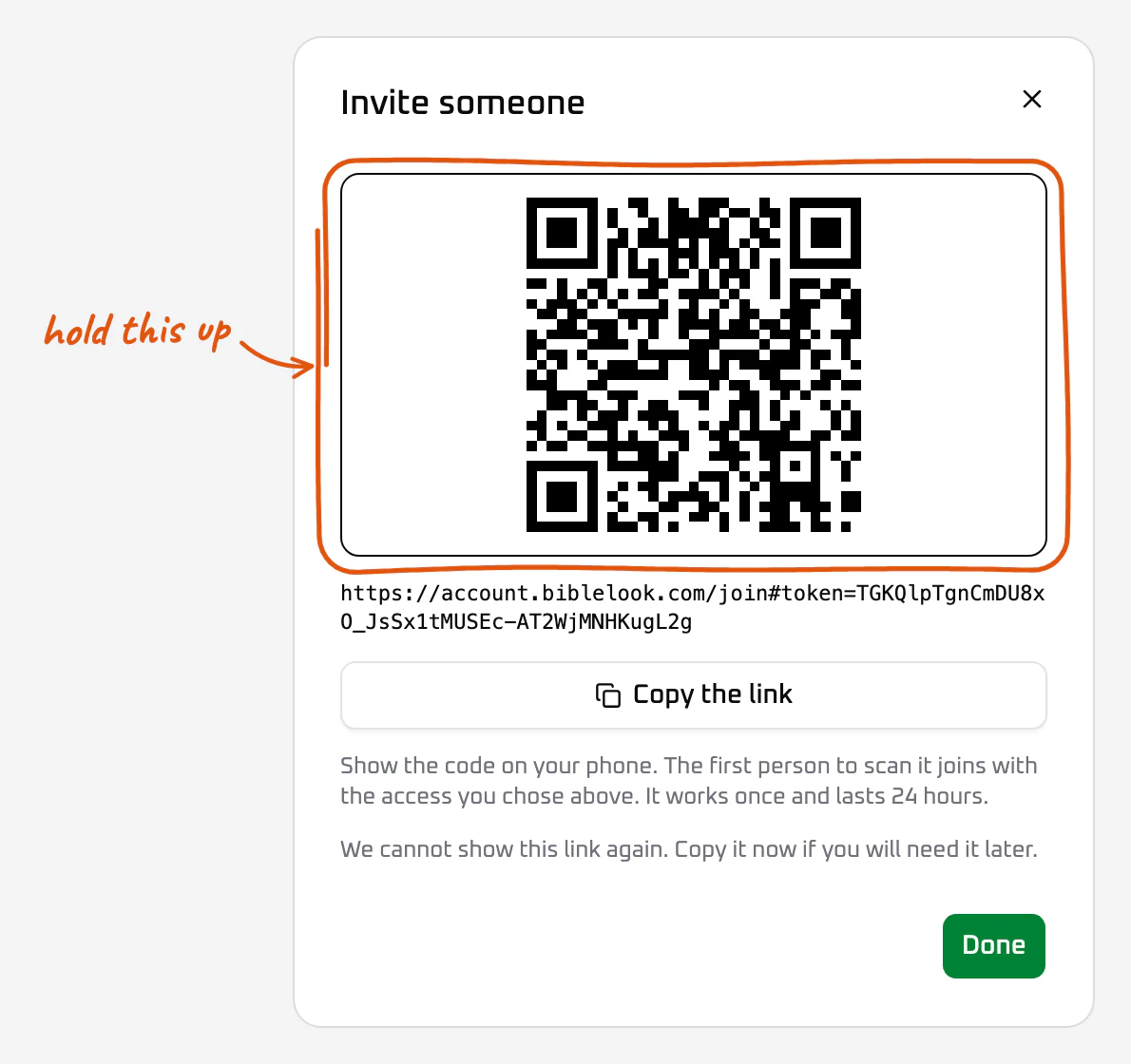
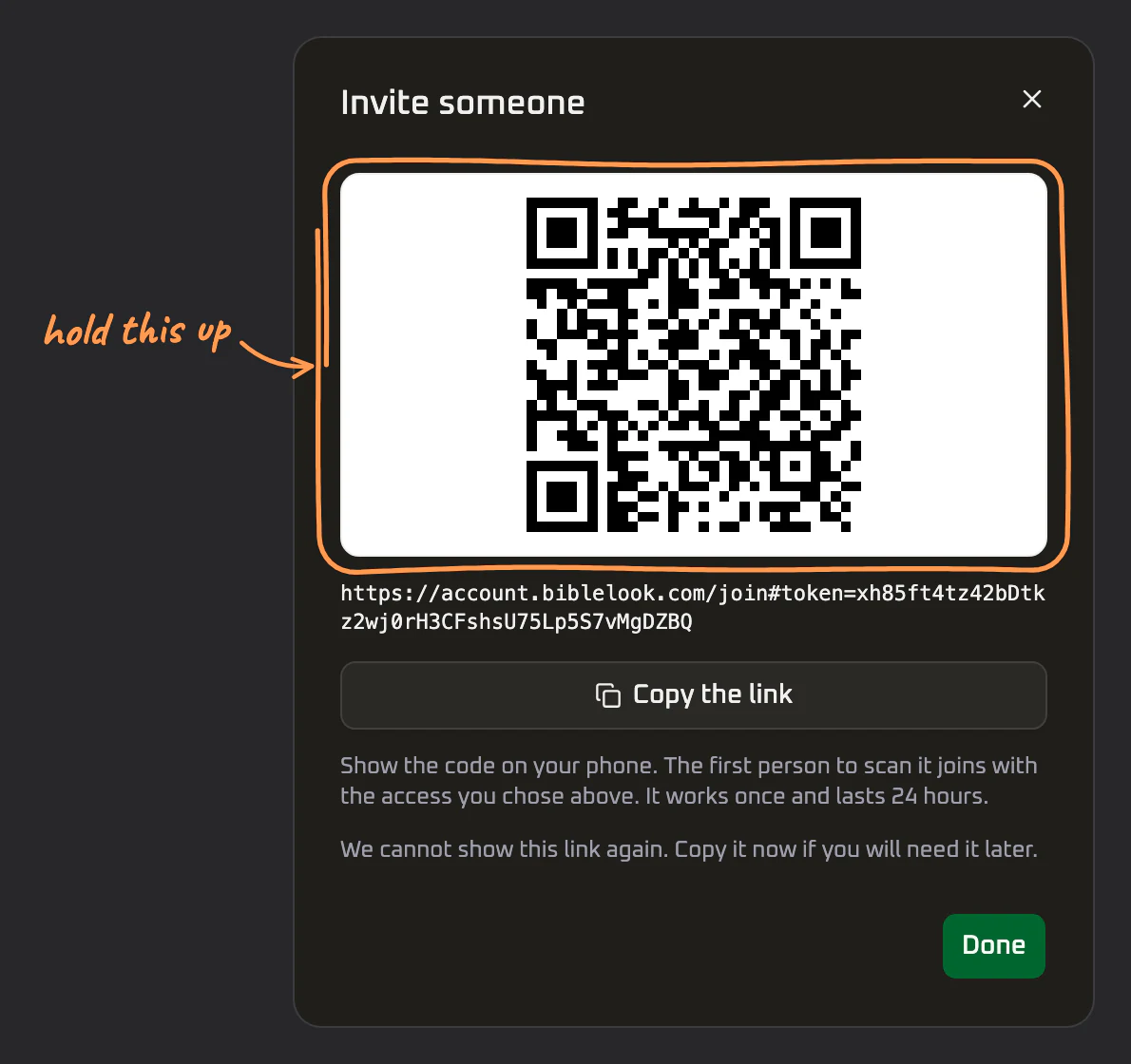
Choose Create the link and hold your phone up for them to scan the code. Nobody has to spell an address out loud.
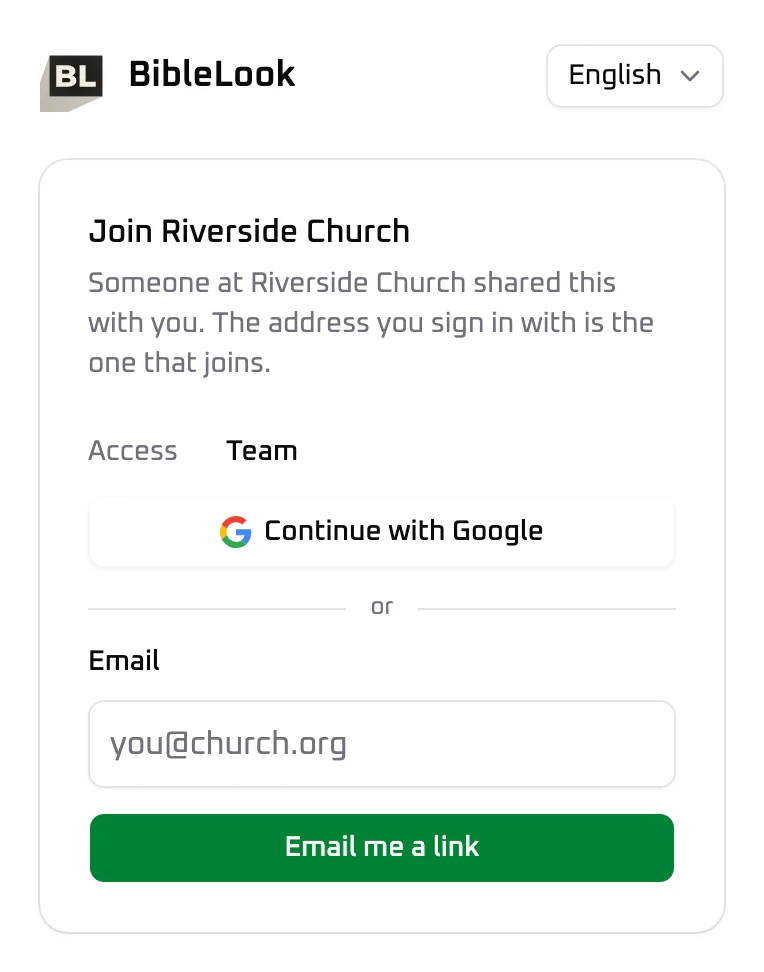
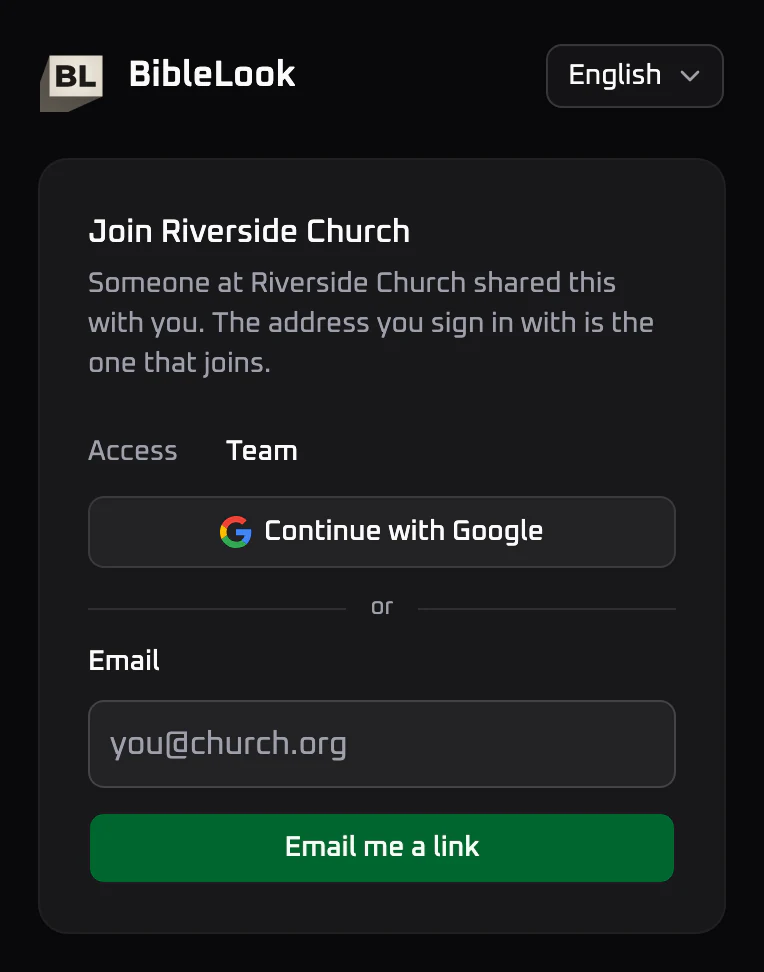
On their phone they sign in with Google or ask for a link to their own address. Whichever address they prove is the one that joins, with the access you chose.
A code works for one person only, and it stops working after a day. Make another for the next person; the same code cannot be shown twice.
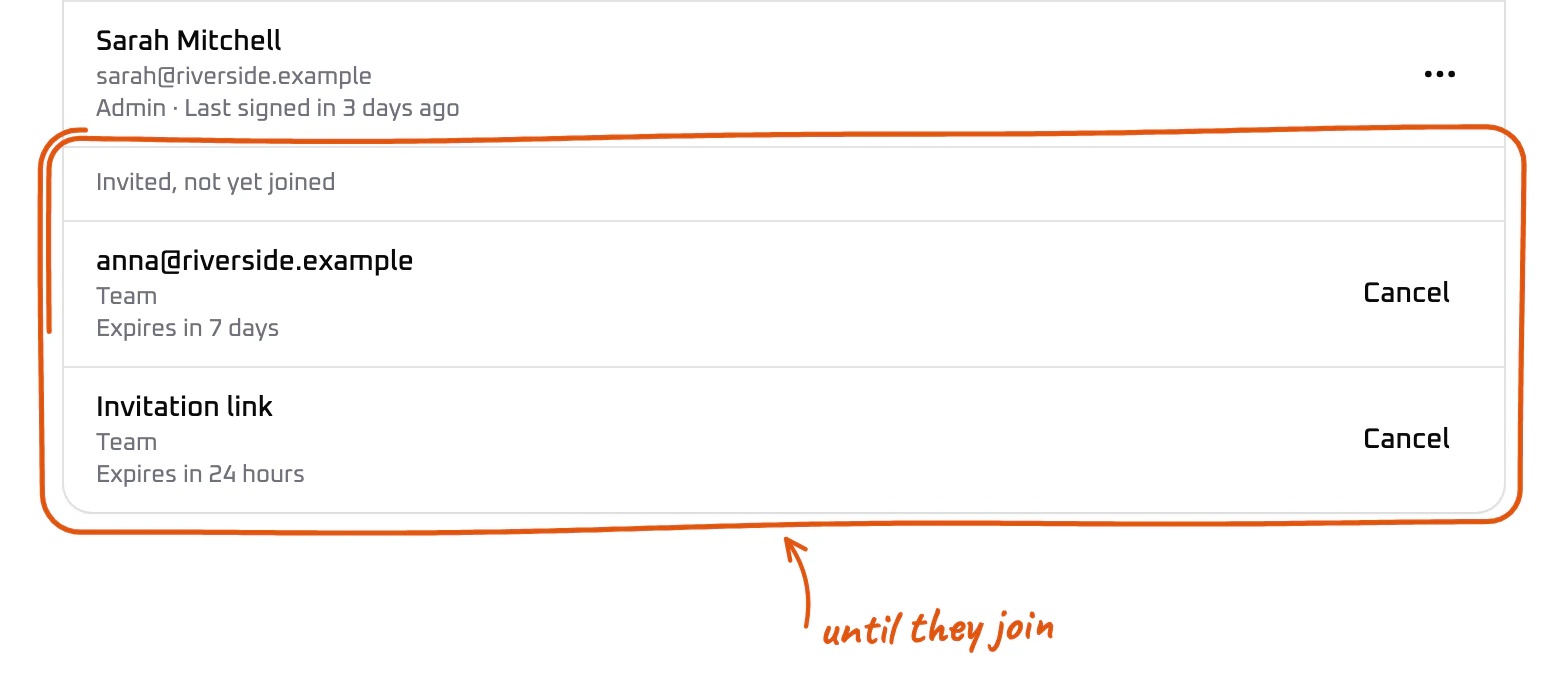
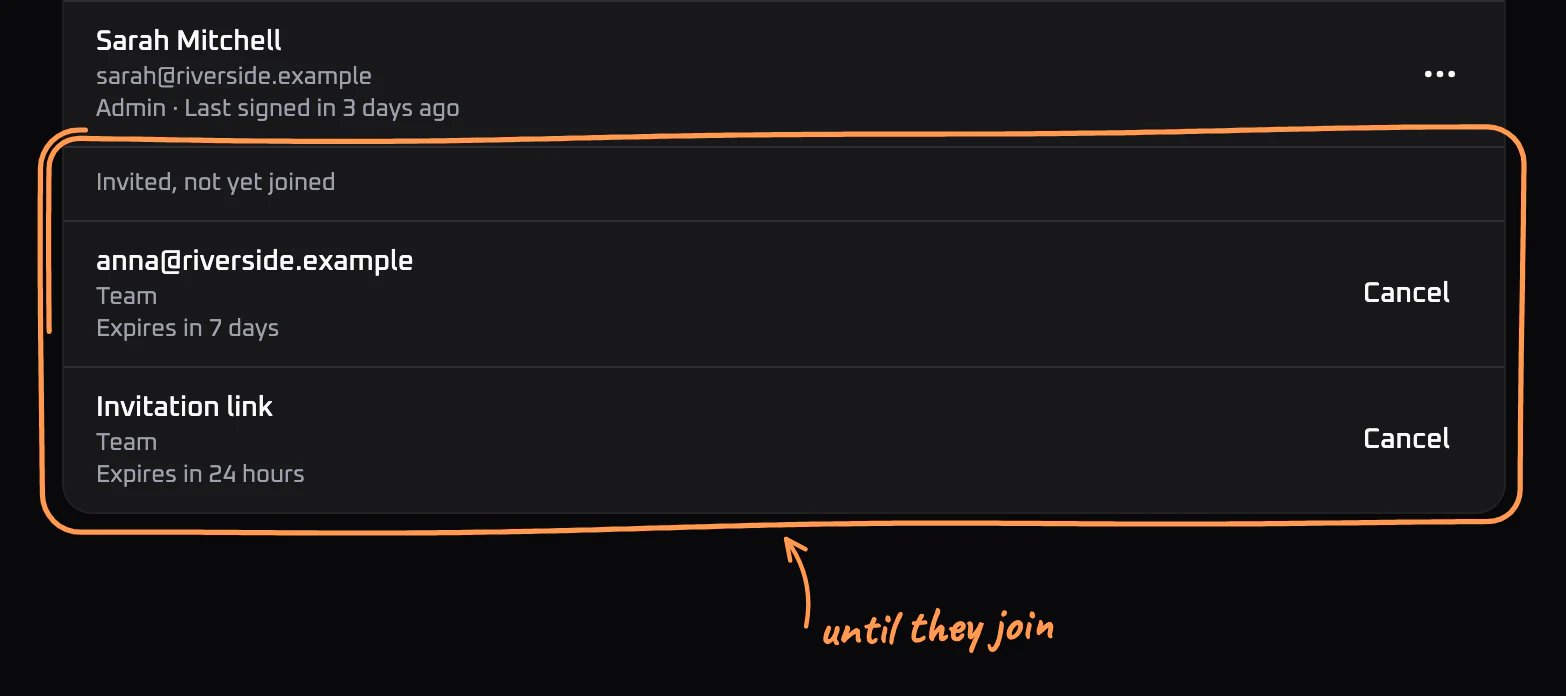
Until they join
Every open invitation waits under Invited, not yet joined at the bottom of the list. Cancel on its row closes it.
Phones during a service
Anyone in the church opens app.biblelook.com on their phone and signs in.
The team lands in the library; to run the service they choose the hall
computer from the button at the top, and Bible and Live join the tabs.
A helper picks the computer first thing, and sees the running order and
Live. Everyone starts by watching: the order, what is on the wall in a bar
along the bottom, and a box to suggest an announcement, which waits for the
person at the computer.
When a team member connects, the computer asks whether they may run the service. Allow control hands it to them until BibleLook is closed, so a phone that locks and reconnects is not asked again. You can take it back, or disconnect a phone, from Companion, the phone button at the top right of the window, which counts the phones connected. Helpers are never offered control.
With control, a phone runs things from where they are: tap a verse in Bible, a line of a song, a slide of a presentation, or show a picture as the overlay or the background. The bar along the bottom steps and hides whatever is up, and tapping it opens where it came from. Service is the service the computer has open, and it can be reordered there. Disconnect, from the same button at the top, lets the computer go; the library stays.
A guest speaker
A visiting speaker with their own presentation needs no account. In Companion, choose Invite a guest, type their name and how long it lasts. Their QR code and link open right away, and again from QR code on their row. They scan the code or open the link you send, check their language, screen and clicker once, then upload a PDF or a Google Slides link and show it themselves. They see nothing else of the church. The link is the guest: a phone and a laptop on it count as one guest, and End closes both.
A guest never takes the screen from you. When a song or a verse is up, or you have taken the screen from them, they ask instead, and the request waits in the bottom corner of the window with Not now and Show. Show puts their slide on; Not now just closes the request, and they can ask again.
Their presentations stay in the library, in a folder of their own under Guests, for you to keep or delete. A guest can remove one they brought, which puts it in the library’s trash. End closes the link at once, and it closes by itself when its time is up.
This is a different question from operator profiles, which decide who may touch this computer.
people, members, roles, owner, admin, team, helper, invite, link, QR, companion, phone, remote, web app, guest, speaker, ask